
The New & Improved Task Tab
Table of Contents
- New Task Tab Features – Space, speed, and batch printing.
- Archiving & Unarchiving Tasks – How to archive single or bulk items.
- Notification Settings – Customizing alerts and troubleshooting.
- FAQs – Quick answers on filters and task status.
New Task Tab Features
We’ve redesigned your Task tab to make your workday smoother. Based on your feedback, we’ve cleared the clutter so you can focus on what matters most: getting prescriptions to your patients on time.
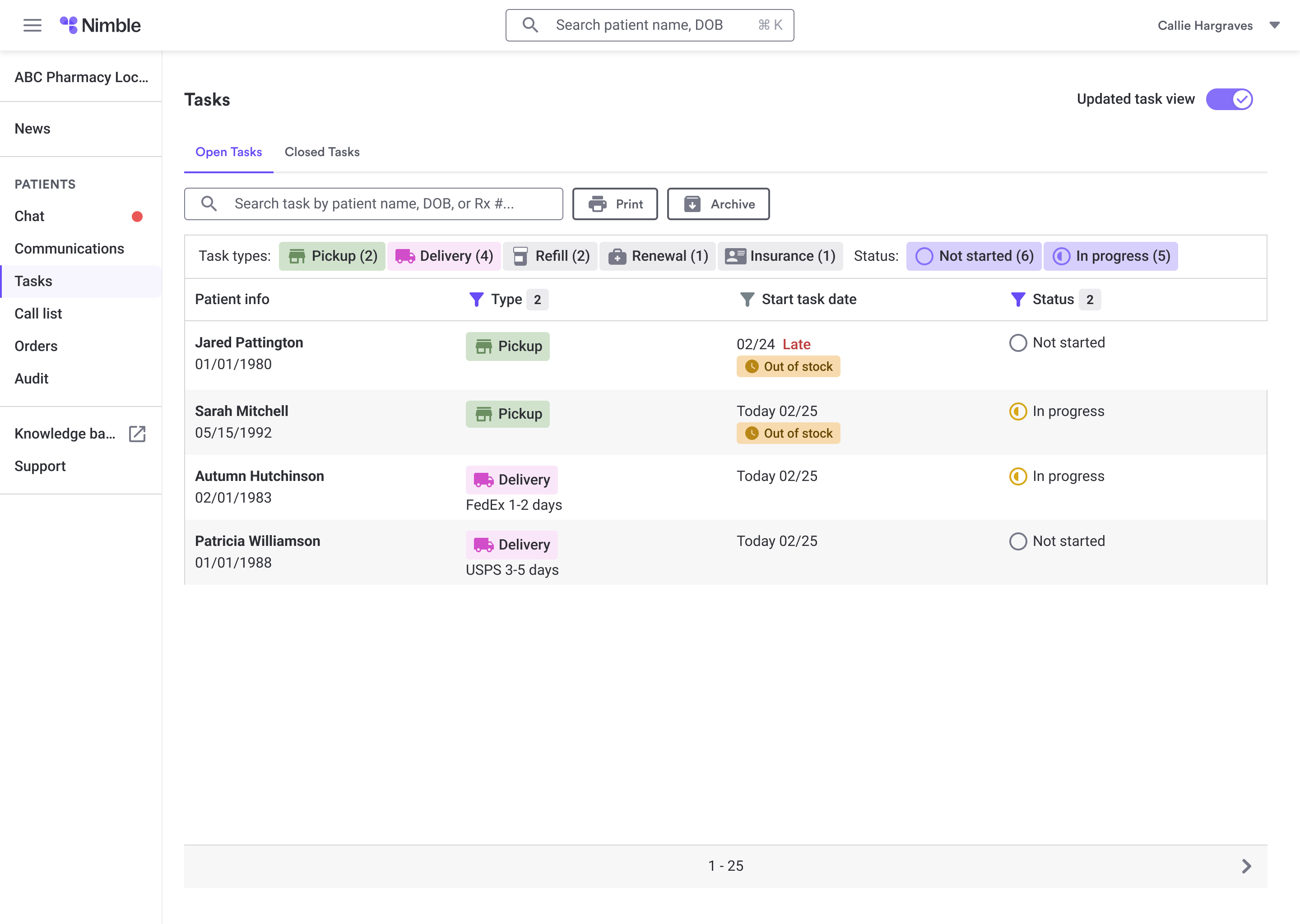
- More Screen Space: We removed the bulky side panels and moved the filters to give you a full-width view of all your tasks.
- Faster Search: A new, wide search bar at the top lets you find a patient instantly while you are on the phone or at the counter.
- Batch Printing: You can now print labels and documents for multiple tasks at once to save time.
- Status quick filters show live counts for Not Started and In Progress tasks — tap one to filter your list instantly
- Filter open tasks by start date — Late, Today, Tomorrow, or Future
- Open and Closed tasks now live in separate tabs so your active queue stays clean
- Task type icons and color-coded statuses make a mixed list easy to scan at a glance
Streamline Your Workflow: Batch Printing
You can now fulfill orders faster by printing task details in bulk directly within your Task Tab. Instead of navigating to a separate page, simply select multiple tasks using the checkboxes and click the Batch Print button. This update includes full coverage for Rx2Go and Rx4Route couriers, ensuring all labels are formatted correctly for immediate use. Once printing is complete, your view will automatically refresh to show updated statuses, keeping your workspace accurate and efficient.
How to Use the New Task Tab
Managing your workflow is now more intuitive than ever. Here is how to navigate the new layout:
Step 1: View Your Tasks
Go to the Tasks tab. You will now see a large table that fills your entire screen. Every row is a task containing the patient’s name, the task type, and the priority.
Step 2: Check the "Start Task Date"
Look at the new date columns.
- Start Task Date: When you should begin the work.
- Tip: Look for the red "Late" indicators to see which tasks need your attention right away.
Step 3: Find a Specific Patient
Use the Search Bar in the Task Section. Simply type the patient's name to filter the list instantly. This is perfect for when a patient is standing in front of you.
Step 4: Take Action
Click on any task to see the details. If you need to print multiple tasks, use the checkboxes on the left to select them and click Batch Print.
Step 5: Navigate Back
When you’re done with a task, clicking "Back" will take you right back to your filtered list exactly where you left off.
Based on the brief provided, here are the new sections and an FAQ tailored to match the tone and format of your existing Knowledge Base article.
Archiving & Unarchiving Tasks
Sometimes tasks get "stuck" due to technical issues or because an order was handled outside of Nimble. Task Archiving allows you to clear these items from your dashboard immediately without needing to contact Support.
Archiving removes a task from your active list. It does not message the patient and does not change any information in your PMS.
How to Archive one single Task
- Click on the task you want to archive
- Select “Archive” at the bottom of the page.
- Select a Reason: You must choose a reason for archiving or input one
- Confirm: Once confirmed, the task moves to the Archived status
How to Archive Tasks in bulk
- Click on the “Archive Tasks” button at the top of the Task list.
- Select Task(s): Use the checkboxes on the left to select one or more tasks. Filters will briefly freeze to ensure your selection stays accurate
- Archive: Click the “Archive Tasks” button again.
- Select a Reason: You must choose a reason for archiving or input one.
- Confirm: Once confirmed, the task moves to the Archived status.
How to Unarchive a Task
If you archive a task by mistake, you can bring it back to your active workflow at any time.
- Navigate to the Status column in your Task table.
- Filter for “Archived”
- Locate the specific task.
- Select Unarchive within the task. The task will return to your active dashboard in its previous state.
Want to try it out yourself? Follow this link to take a step by step tutorial! Note: Only available for Collect Pharmacies.
Notifications Settings
We’ve streamlined the Nimble Pharmacy Dashboard to help you manage patient updates without the noise. Access your settings via the Side Navigation Bar—just hover over Chat or Tasks, click the three dots, and toggle alerts to fit your workflow.
Core Alert Features
- Reliable Desktop Pop-ups: Get alerts even when working in other tabs. We respect "Do Not Allow" selections permanently, and you can use the Test Notification button to verify setup.
- Smarter Sound Alerts: No more rapid-fire beeping. You’ll hear one "ping" per event, with a single reminder after 15 minutes if a task remains unaddressed.
- Visual Indicators: A Red Dot stays visible next to Chats or Tasks until they are resolved, ensuring nothing is overlooked.
Troubleshooting Checklist
If alerts aren't appearing, verify the following:
- Browser Permissions: Ensure notifications are "Allowed" for the Nimble site.
- System Volume: Check that speakers are on and unmuted.
- Focus Mode: Disable "Do Not Disturb" or "Focus" settings on your OS.
Need more help? Use the Test Notification tool in settings or visit our full Troubleshooting Guide.
FAQs
Where did my filters go?
The filters are still there! We just moved them from the middle of the screen to a more compact area at the top to give your task list more room.
What does the "Late" indicator mean?
This appears automatically if a task has passed its "Start Date" or "Due Date" without being completed. It helps you stay ahead of patient expectations.
Is the Batch Printing feature available for everyone?
Yes! All pharmacies now have access to Batch Printing to help manage high volumes of orders more quickly.
Why does the dashboard look different?
We redesigned it to work more like a spreadsheet. This allows you to see more information at once without having to scroll or click through multiple pages.
What is the difference between Archiving a task and Completing it?
Completing a task happens naturally when the workflow is finished and usually triggers a status update. Archiving is a manual "cleanup" tool for tasks that have no other path to resolution. Archiving clears your view without sending any automated notifications to the patient and without modifying the task status on your PMS.
How do I filter my tasks?
You now have more ways to filter your tasks. You will see boxes next to "Open Tasks" at the top of the table labeled pick-up, delivery, refill request, renewal request, and insurance. Click one or more of those to filter your tasks according to the selected catagory. In addition to the Quick Filter Boxes, you can filter your tasks directly in the table by task or status. Do this by selecting the purple filter icon next to Task or Status.
Can a pharmacy disable sound for Chat but keep it on for Tasks?
Yes. Sound preferences are set per feature — a pharmacy can enable sound for Tasks and disable it for Chat, or vice versa. Desktop notification preferences also work per feature.
QWhat happens if the browser blocks desktop notifications?
The in-app toggle will reflect this and explain why desktop notifications are not firing. The pharmacy will need to re-enable notification permissions in their browser settings. The Notification Test guidance walks through the browser-specific steps.
If a pharmacist has a chat thread open and walks away, will they get alerted to new messages?
Yes. After 10 minutes of screen inactivity, the system treats the thread as if the pharmacist has left it. A new patient message after that triggers a beep and desktop notification (if enabled) as a new cycle.
What does the purple filter icon look like?
Look for this icon to filter by Task or Status.
.png)