
Sending Announcements in the NimbleRx Dashboard
Keep your patients informed with Pharmacy Announcements — available at no additional cost.
Use Announcements to quickly reach your patient base about things like:
- Holiday hours or planned closures
- Vaccine availability and health campaigns
- Unexpected closures or operational updates
- Pharmacy events, services, or other important news
What's New with Announcements
Choose the SMS Patients Receive
When you create an announcement, you'll choose a category that best matches your message.
Why does that matter?
Patients receive an SMS notification letting them know they have an announcement from your pharmacy. They can then tap the link in the SMS to view your full message.
The category you select helps make that SMS clearer, so patients can understand what your announcement is about before opening it.
Your category does not replace the announcement you write. Your full announcement will still appear when the patient opens the link.
Choose the category that most closely matches the message you're sending.
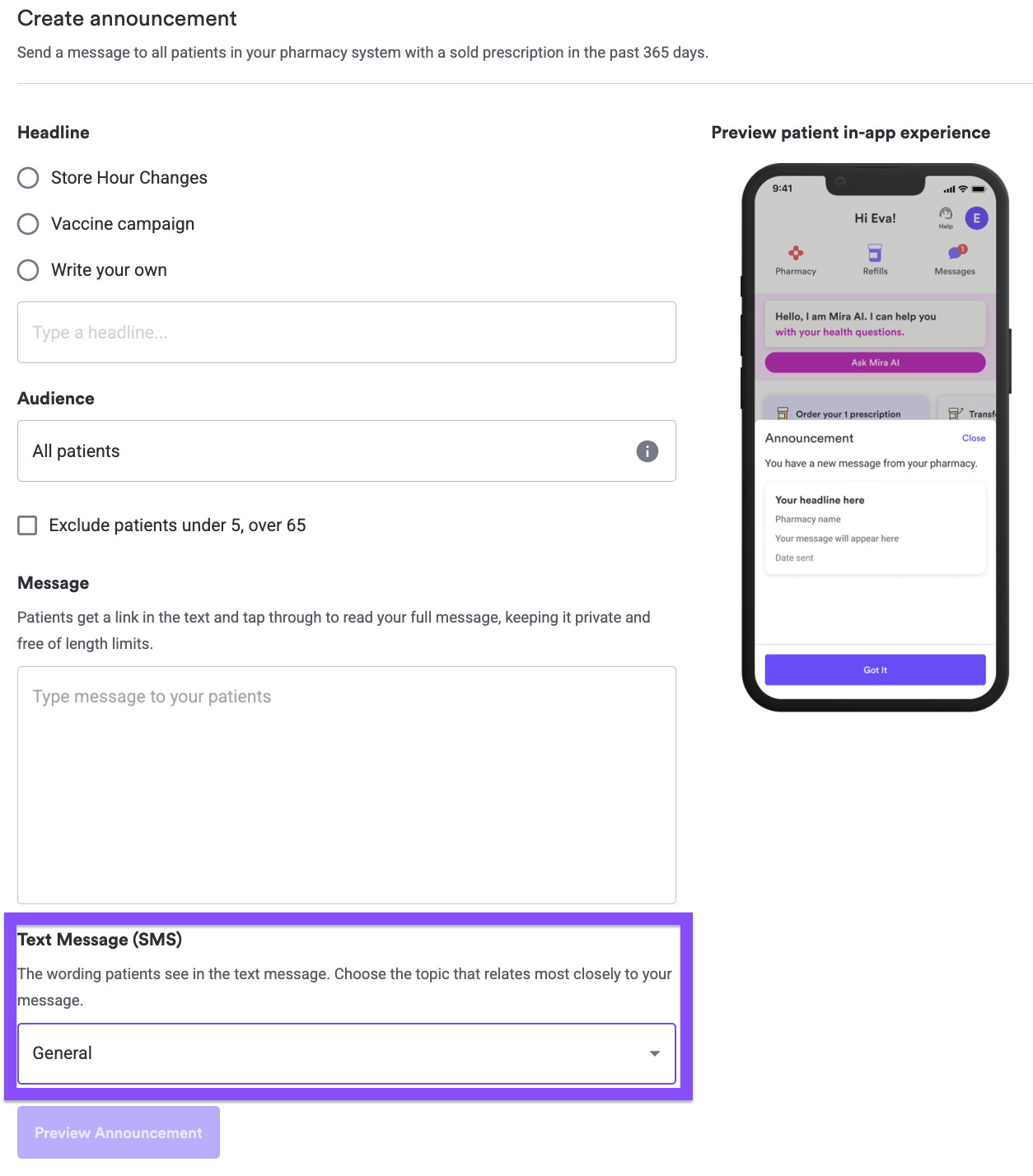
How to Send an Announcement
- Go to Pharmacy Dashboard → Announcements.
- Write the announcement you want patients to see.
- Select the category that best matches your announcement.
- Review the number of eligible recipients.
- If applicable, use Age Suppression to exclude patients under 5 or over 65.
- Choose the SMS category you would like your patients to receive.
- Review your announcement before confirming.
Once sent, announcements cannot be edited or recalled.
Writing a Great Announcement
Make it easy to scan
Keep your announcement short and put the most important information first.
Instead of:
"We wanted to let everyone know that because of the upcoming Independence Day holiday, our pharmacy will not be operating during our regularly scheduled business hours..."
Try:
"[Pharmacy Name] will be closed July 4 and reopen July 5 at 9 AM. Please plan refill pickups accordingly."
Tell patients what to do next
When appropriate, include a clear next step:
- Call the pharmacy
- Visit before a closure
- Walk in for a vaccine
- Plan refill pickups ahead of time
Don't include Protected Health Information
Announcements are broadcast messages. Do not include patient names, medications, dosages, or other Protected Health Information (PHI) in your announcement.
Announcement Ideas
Holiday Closure
"[Pharmacy Name] will be closed July 4 for Independence Day and reopen July 5 at 9 AM. Please plan refill pickups accordingly."
Vaccines
"[Pharmacy Name]: Flu vaccines are now available. Walk in Monday–Friday between 9 AM and 5 PM."
Unexpected Closure
"[Pharmacy Name]: Due to severe weather, we are closing today at 1 PM. We expect to reopen tomorrow at 8 AM."
Pharmacy Services
"[Pharmacy Name]: Did you know we offer [service]? Call us at [phone number] to learn more."
Frequently Asked Questions
Does it cost anything to send an announcement?
No. Pharmacy Announcements are available at no additional cost.
Does the patient receive the exact announcement I write as an SMS?
No. The patient receives an SMS notification with a link to your announcement. When they tap the link, they can view the full message you created.
The category you select determines how that SMS notification is framed so patients have more context about the type of message they're receiving.
Who can receive announcements?
Eligible patients with a verified mobile number can receive announcements.
Can I schedule an announcement instead of sending it immediately?
Holiday Closure announcements can be scheduled in advance, allowing you to prepare planned closure communications ahead of time.
Can I edit an announcement after it has been sent?
No. Always review your announcement before confirming it.
Why can't I send my announcement?
You may have reached the daily announcement limit or your announcement may be missing required information.