
Get More Google Reviews
Grow your pharmacy’s online reputation with automatic review requests.
Pharmacy Reviews makes it easy to ask patients for a Google review after a prescription is sold — without adding another manual step for your team.
Once enabled, eligible patients can automatically receive a text message inviting them to leave a review on your pharmacy’s Google Business Profile.
You stay in control: Pharmacy Reviews is off by default, and you can turn it on or off whenever you want.
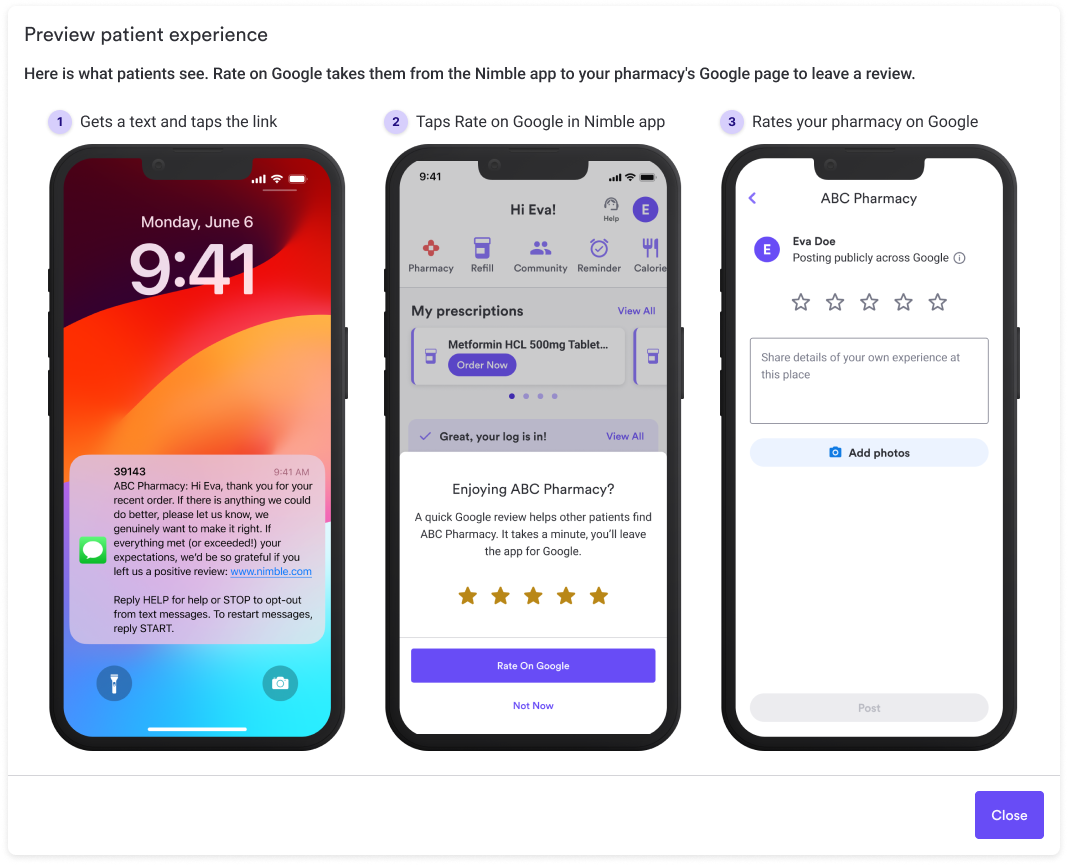
Why Use Pharmacy Reviews?
More Google reviews can strengthen your pharmacy’s online presence and make it easier for prospective patients to see recent customer feedback.
Pharmacy Reviews helps you:
- Ask for reviews automatically after a fill is sold
- Grow your Google review volume without asking staff to follow up manually
- Direct patients straight to your pharmacy’s Google Business Profile
- Avoid over-messaging by limiting requests to once per patient per year
- Turn the feature on or off whenever you want
How It Works
After Pharmacy Reviews is turned on:
- An eligible patient completes a prescription purchase.
- NimbleRx sends the patient a dedicated pharmacy review-request text message after the fill is sold.
- The patient can then open the link in the message and go to NimbleRx through the app or browser.
- From there, they will see the option to review your pharmacy’s Google Business Profile.
The review request is sent as its own message, not added onto another patient notification.
How Often Will Patients Receive a Review Request?
A patient can receive a review request from your pharmacy once per year.
Even if the same patient fills multiple prescriptions during that time, NimbleRx will not keep sending additional review requests from your pharmacy.
How to Turn On Pharmacy Reviews
Pharmacy Reviews is off by default.
To get started:
- Open the Communication Center and click “Customize” You can also get there by going to Settings in your Pharmacy Dashboard and selecting the Communications tab.
- Toggle on the Google Review Request Opportunity in the Patient Engagement Section of settings in your Pharmacy Dashboard.
- Enter your pharmacy’s Google Place ID.
- Use the preview link to confirm that the Place ID points to your pharmacy’s Google Business Profile.
- Save your changes.
Once enabled, eligible patients can begin receiving review requests after their fills are sold.
What Is a Google Place ID?
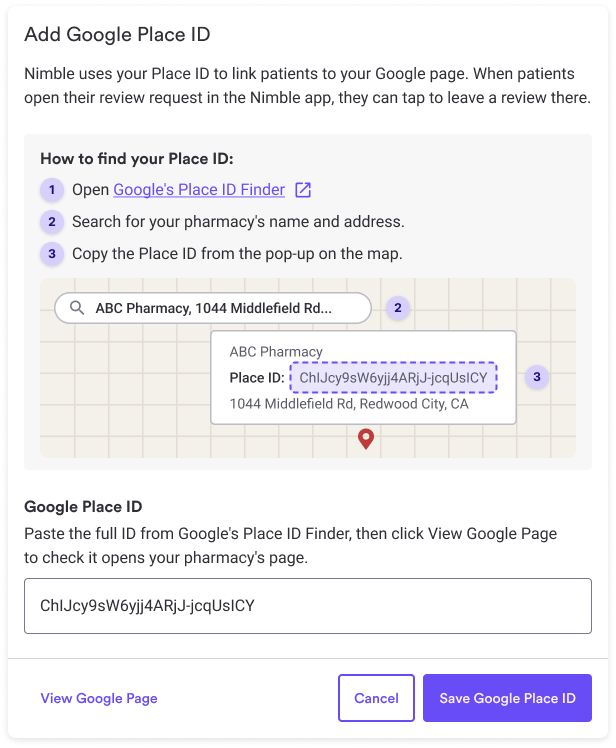
A Google Place ID is the unique identifier connected to your pharmacy’s Google Business Profile.
NimbleRx uses this ID to make sure patients are sent to the correct Google review page.
Before turning Reviews on, use the preview link in the Pharmacy Dashboard to confirm that the Place ID points to the right business.
Turn Reviews Off Anytime
You can turn Pharmacy Reviews off whenever you want inside of the Communication Center.
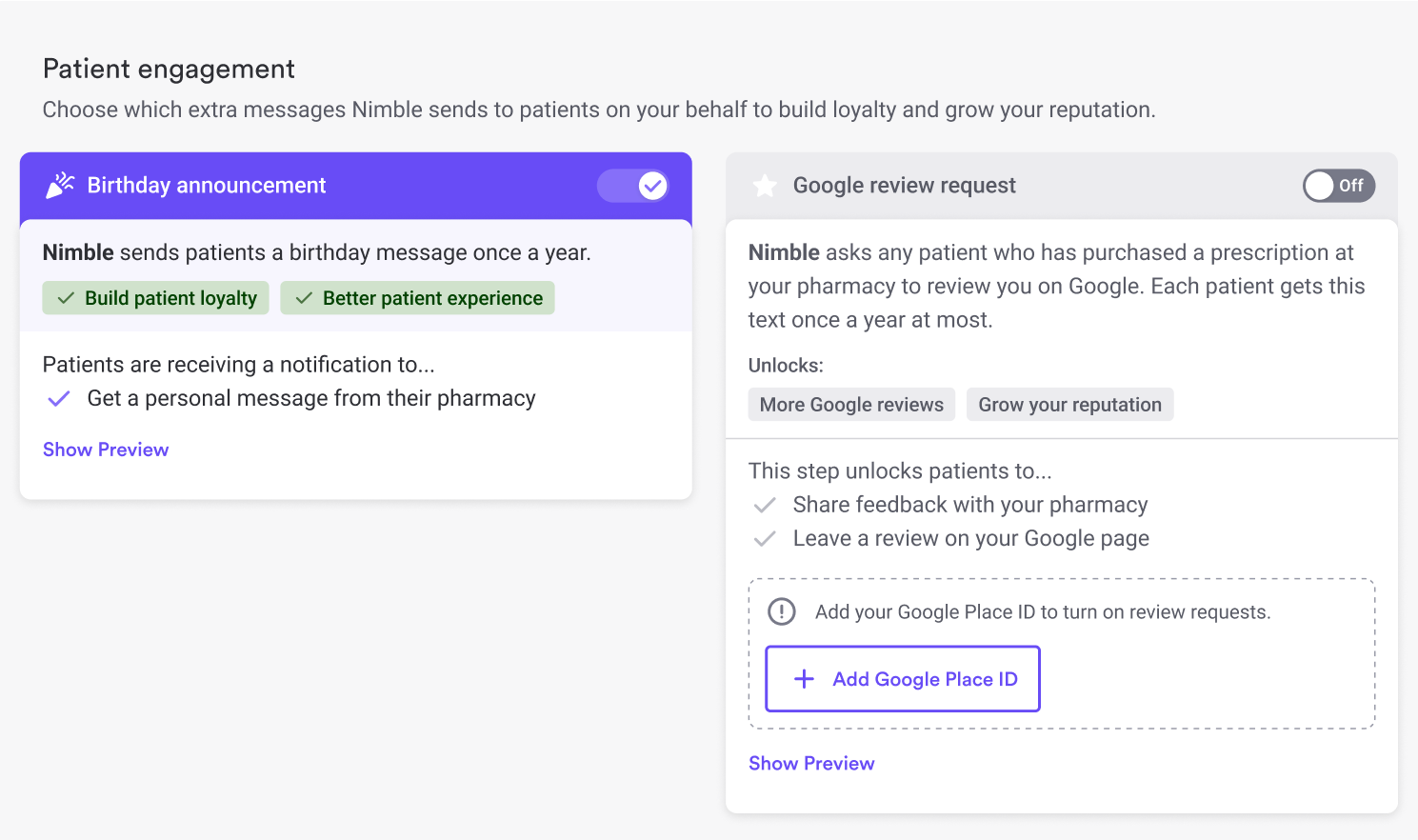
When Reviews is turned off:
- Patients will stop receiving review requests from your pharmacy
- Your saved Google Place ID is kept
- You can turn Reviews back on later without entering the Place ID again
Who Can Receive a Review Request?
A patient may receive a review request when:
- Your pharmacy has Pharmacy Reviews turned on
- The patient has a phone number on file
- The patient has not already received a review request from your pharmacy within the past year
- The fill has been sold
Important Things to Know
- Pharmacy Reviews works with Google Business Profiles.
- Yelp, Facebook, and other review platforms are not supported.
- Reviews are off by default until your pharmacy enables the feature.
- Patients receive no more than one review request per pharmacy per year.
- Review requests are sent automatically after an eligible fill is sold.
Frequently Asked Questions
Does Pharmacy Reviews turn on automatically?
No. The feature is off by default. Your pharmacy chooses whether to enable it.
Can I turn it off later?
Yes. You can turn Reviews off at any time and turn it back on later.
Where do patients leave their review?
Patients are directed to your pharmacy’s Google Business Profile.
Can I send patients to Yelp or Facebook instead?
No. Pharmacy Reviews currently supports Google Business Profiles only.
How often will the same patient receive a review request?
At most once per year from your pharmacy.
Do I have to send review requests manually?
No. Once Reviews is enabled, NimbleRx automatically sends review requests after eligible fills are sold.
What happens if I enter the wrong Google Place ID?
Use the preview link before enabling Reviews to confirm that the Place ID points to your pharmacy’s Google Business Profile.