
Enhanced Visibility and Control in Your Communication Center
Managing patient interactions just got easier. We’ve updated the Communication Center to give you more direct control over your automated messaging and a clearer view of the patient journey.
What’s New?
We have unbundled our "After Purchase" settings. You no longer have to choose between all or nothing; you can now manage Refills and Order Delivered notifications independently.
Overview of Self-Serve Controls
Step 1: Sign in as the "Owner"
- Action: Log in with your primary Pharmacy Owner credentials.
- Why: Regular staff logins hide the "Customize" button to prevent accidental system-wide changes.
Step 2: Find the "Communication" Tab
- Action: Click on Communication in the left-hand sidebar menu.
- Result: This opens your dashboard where you can see recent SMS activity.
.png)
Step 3: Enter the "Settings" Mode
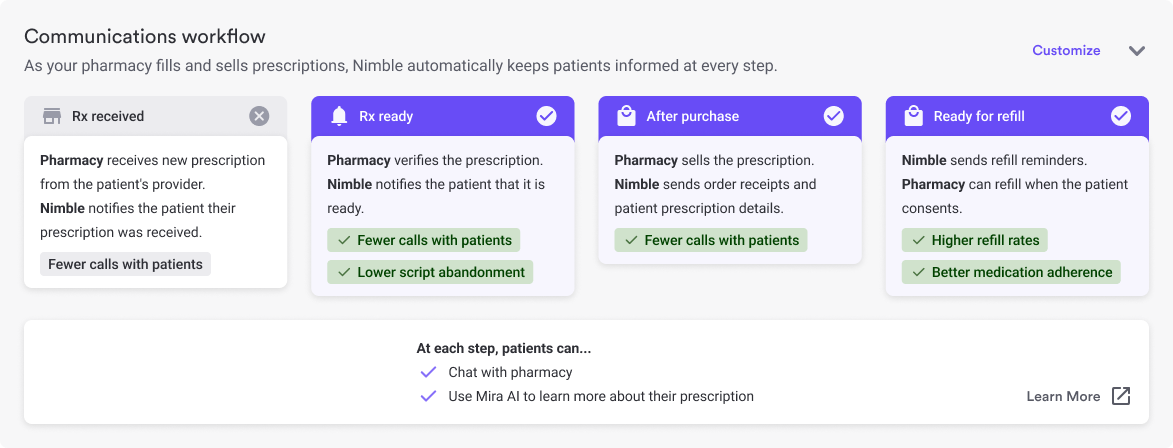
- Action: Click the Customize button in the "Communications Workflow" section (top right).
- Result: The screen will display cards for different stages of the patient journey.
Step 4: Toggle Your Choices
Find the specific stage you want to manage. Purple/On means messages are active; Gray/Off means they are paused.
- Ready for Sale: Controls "Your Rx is ready for pickup/checkout" texts.
- After Purchase: Controls "Order Delivered" notifications and general post-sale updates.
- Refills: (New) Controls automated refill reminders independently of delivery updates.
Greater Flexibility: Unlike previous versions, you can now turn off Refill Reminders while keeping "Order Delivered" notifications active for your patients.
%20(2).png)
Safety & Verification
Step 5: The "Warning" Pop-Up (If turning OFF)
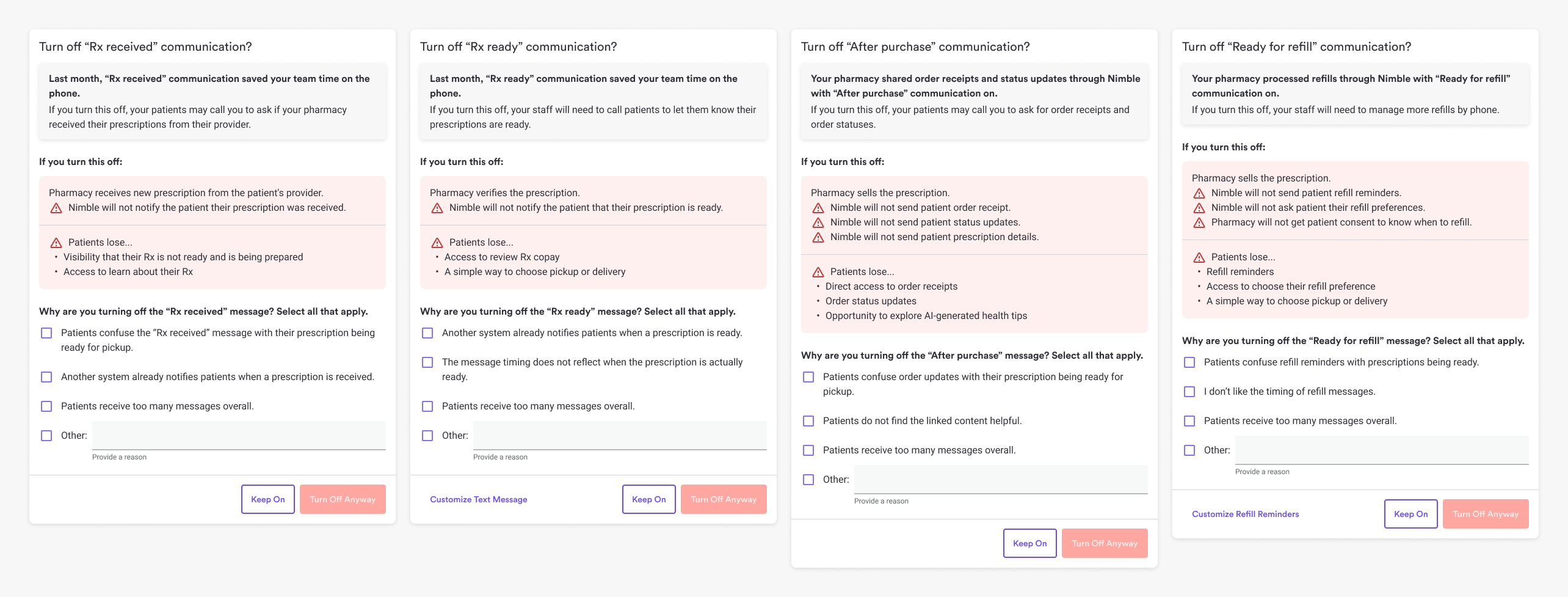
Action: If you flip a switch to OFF, a Confirmation Modal (pop-up) will appear. This is designed to help you understand the impact on your pharmacy's workflow.
- Read the Impact Statement: Each category has a specific warning. For example, turning off "Ready for refill" will notify you that Nimble will no longer send refill reminders or ask for patient preferences, which may require your staff to manage more refills by phone.
- Select a Reason: You will be asked to select why you are disabling the message (e.g., "Patients receive too many messages overall" or "I don't like the timing of refill messages").
- Finalize: Click "Turn Off Anyway" to save your changes.
How to Read the "Logs"
Use the dashboard logs to verify your automated workflow:
- Pharmacy Action: Displays the exact timestamp the prescription was marked "Sold."
- Nimble Action: Displays the specific message sent. Because of the unbundling, logs will now clearly distinguish between a "Refill Reminder" and an "Order Delivered" notification.
What happens next?
Changes happen instantly for all future prescriptions. Once you hit save, an alert is sent to the Nimble team for our records, but no further action is required from you.